MCP connectors
Build forms and read responses by asking any AI assistant that supports MCP. Takes about a minute.
You ask your AI
"Build me a signup form"
MCP over HTTPS
signed in as you
Form in deoochform
with a public link
Add the connector
Signs you in through the browser. No token to copy or store.
Copy the connector URL
This is the address your AI assistant connects to:
https://forms.deooch.com/api/mcp
Add it as a custom connector
In your AI assistant's settings, add a new remote MCP connector (sometimes called a custom connector or MCP server) and paste in the URL above.
Sign in
Your assistant opens a browser to deoochform — sign in and approve. You're sent back automatically and the connection shows up on Connected apps.
Try it
Ask it for something in plain English:
$ Create a customer feedback form with a rating and a comment box⚒ create_form✔ Created. Public link: https://forms.deooch.com/f/kx28fq
The form shows up on your Forms page right away.
Adding it in ChatGPT (web)
deoochform is published in the ChatGPT app directory, so there's nothing to paste — install it and sign in.
Search the app directory
Open Apps in ChatGPT and search for deooch— we're listed under Productivity.
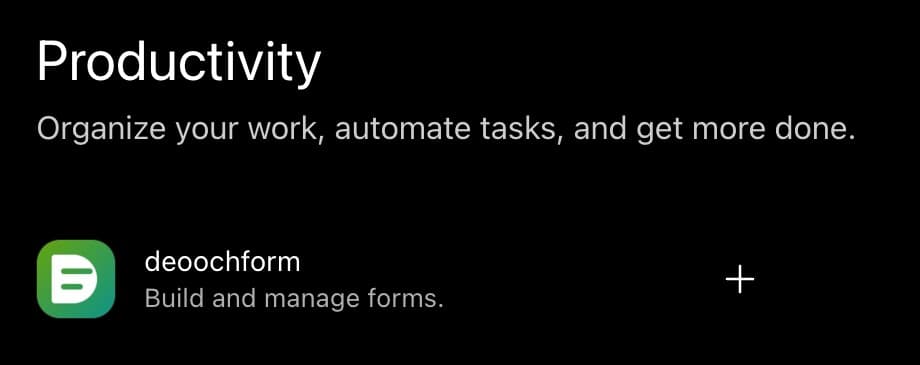
Install the plugin
Open the listing and hit Install plugin. ChatGPT sends you to deoochform's sign-in — approve it and you're back in the chat, connected.
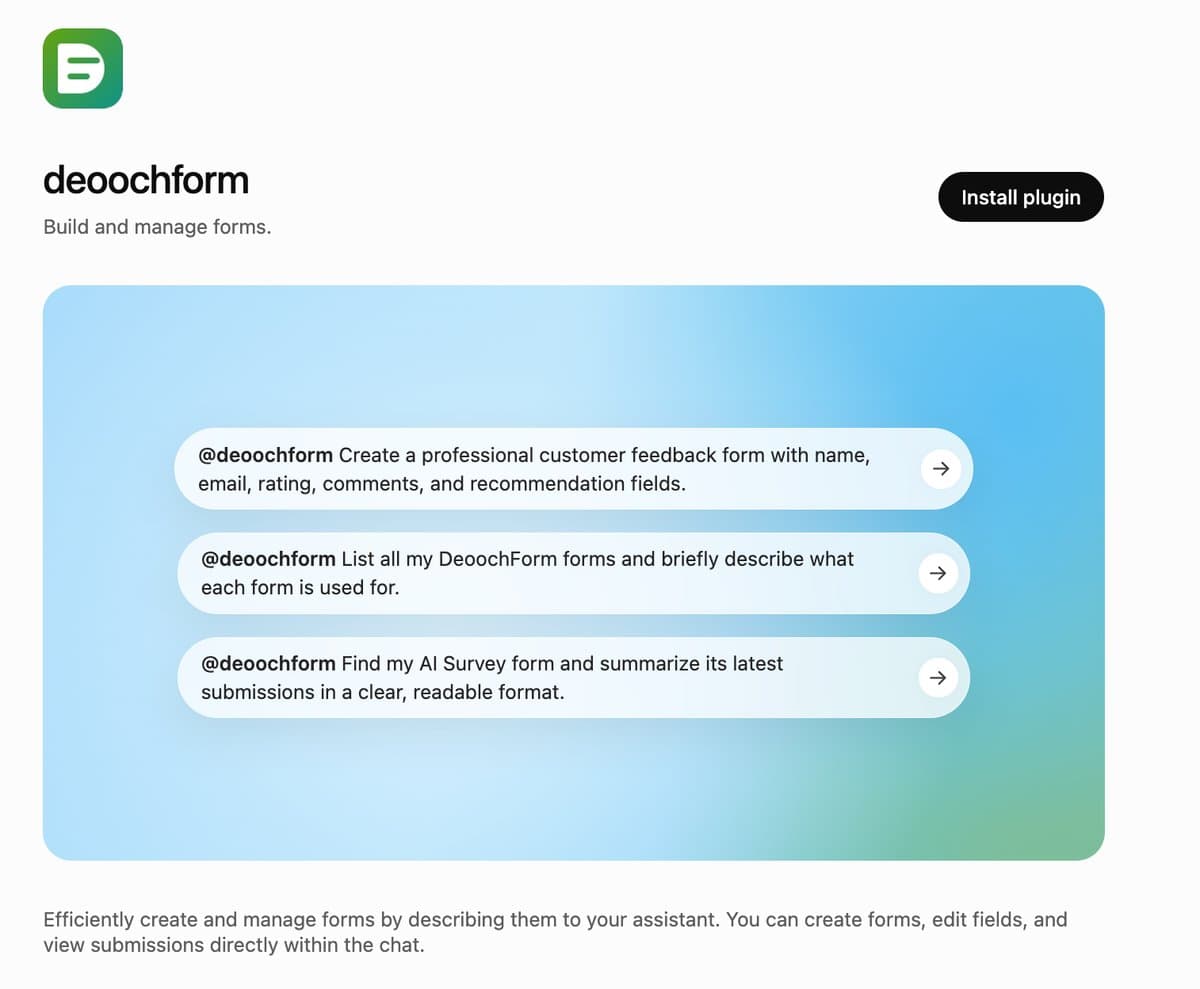
Mention it in a chat
Type @deoochform and ask for what you want:
$ @deoochform Create a customer feedback form with a rating and a comment box⚒ create_form✔ Created. Public link: https://forms.deooch.com/f/kx28fq
Adding it manually instead
If your ChatGPT account doesn't show the directory, add deoochform as a custom connector by hand. Custom connectors need a plan that supports them (Plus, Pro, or Business), with developer mode / connectors enabled.
Open Settings → Connectors
Click your name in ChatGPT, open Settings, then Connectors. Choose Create / Add custom connector.
Fill in the connector
Name it deoochform, paste the MCP URL as the server address, and leave authentication set to OAuth.
https://forms.deooch.com/api/mcp
Connect and sign in
Save, then click Connect. ChatGPT opens deoochform's sign-in — approve it and you're sent back with the connector linked.
Turn it on in a chat
In a conversation, open the + (tools) menu, enable the deoochform connector, then ask it to build a form.
Installing from the MCP Registry
deoochform is published in the official MCP Registry, so clients that browse it can install us by name instead of you pasting a URL. That name is:
io.github.musaib001/deooch-forms
Search your assistant's connector or server directory for deooch. If it doesn't read the registry yet, add https://forms.deooch.com/api/mcp manually as above — same server, same sign-in.
What it can do once connected
create_formCreate a form and get its public link back.
update_formChange a form's title, description, fields, or status.
get_formRead one form's full definition.
list_formsList forms in your workspace.
list_submissionsList responses for a form.
get_submissionRead one response by id.
When something goes wrong
The errors people actually hit, and what they mean.
401 Unauthorized
Why: The connection was revoked, or the sign-in never completed.
Fix: Remove the connector and add it again so you're sent through sign-in from scratch.
Form not found.
Why: The form id is wrong, the form was deleted — or you're on the Free plan and the form belongs to a teammate. Free accounts only reach forms you created.
Fix: Ask your assistant to list your forms first and use an id from that list. If the form is a teammate's, ask a workspace owner, or upgrade.
Your plan is limited to N forms. Upgrade to create more.
Why: You hit the form quota for your plan. Free accounts get 5 forms.
Fix: Delete a form you no longer need, or upgrade on the pricing page.
Connection closed / server not responding
Why: Usually a wrong URL — a missing /api/mcp on the end, or http instead of https.
Fix: Remove the connector and re-add it with exactly https://forms.deooch.com/api/mcp.
Browser doesn't open during sign-in
Why: Your MCP client can't launch a browser (common over SSH or in a container).
Fix: Copy the sign-in URL it prints into any browser and sign in there — the connection picks up automatically once you approve.
Frequently asked questions
What can it actually see?
Only what the six tools expose: your forms and their responses. It can create and edit forms and read submissions. It can't touch billing, members, or other workspaces.
Which AI assistants does this work with?
Any client that supports the Model Context Protocol (MCP) over remote HTTP. Add https://forms.deooch.com/api/mcp as a custom connector and sign in when prompted.
How do I disconnect?
Revoke the connection on the Connected apps page — it stops working immediately. Remove it from your assistant's settings too, so it stops trying to reconnect.
Is the connection per-user or per-workspace?
Per user. Your connection acts as you, with your role and plan. Teammates connect with their own accounts.
Still stuck? Email us and paste the error your assistant printed.